Mainnet Transition - Blox Connected
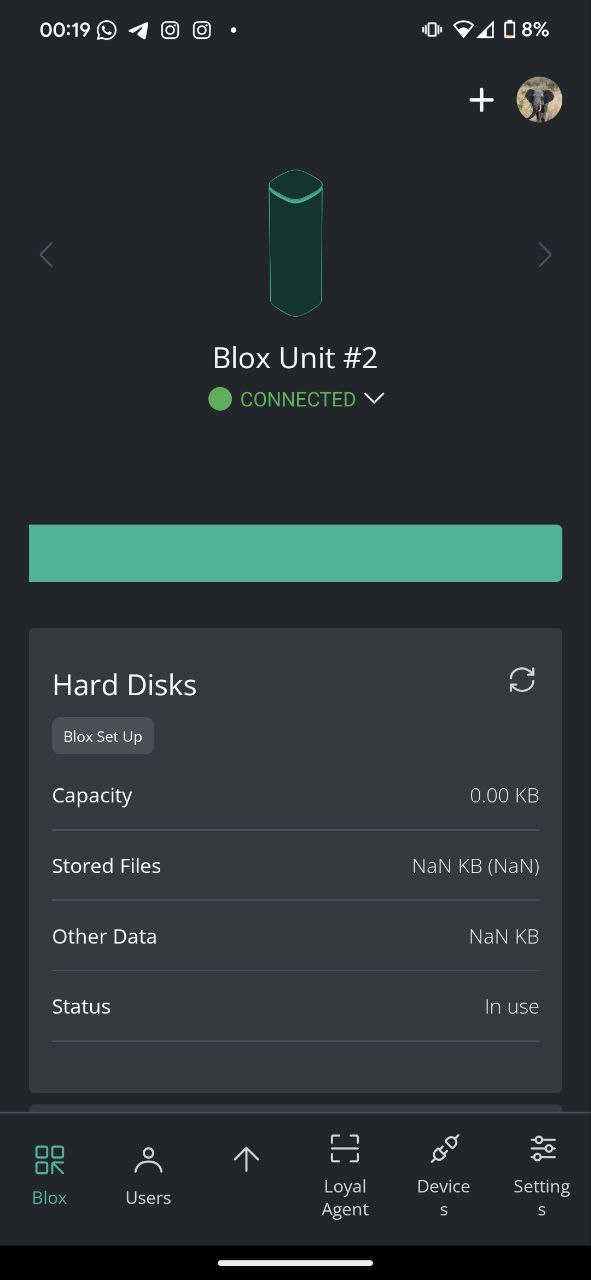
This guide is for users whose FxBlox app shows their Blox as connected.
Prerequisites
- Your app shows "Connected" status
- You are using the web app at https://docs.fx.land/fxblox-web/, or the legacy mobile app at version 2.0.1 or higher
- Your Blox account ID is saved for token claiming
Step 1: Open the app
Open https://docs.fx.land/fxblox-web/ in Chrome or Edge on a computer (Windows, macOS or Linux), or on an Android phone. There is nothing to install and nothing to update — reload the tab and you are on the latest version.
Sign in with the same password and the same wallet you used before; your Blox is recognised immediately. If it does not appear, use Reconnect to existing blox and search your network.
Signing on a phone? Give the page a few seconds afterwards
When you come back from MetaMask, the FxBlox tab can still say Connecting Wallet… for a few seconds before it catches up — the browser's connection is suspended while you are away in another app. Wait rather than tapping again or reloading, which cancels what you just approved. Full walkthrough: Set your identity.
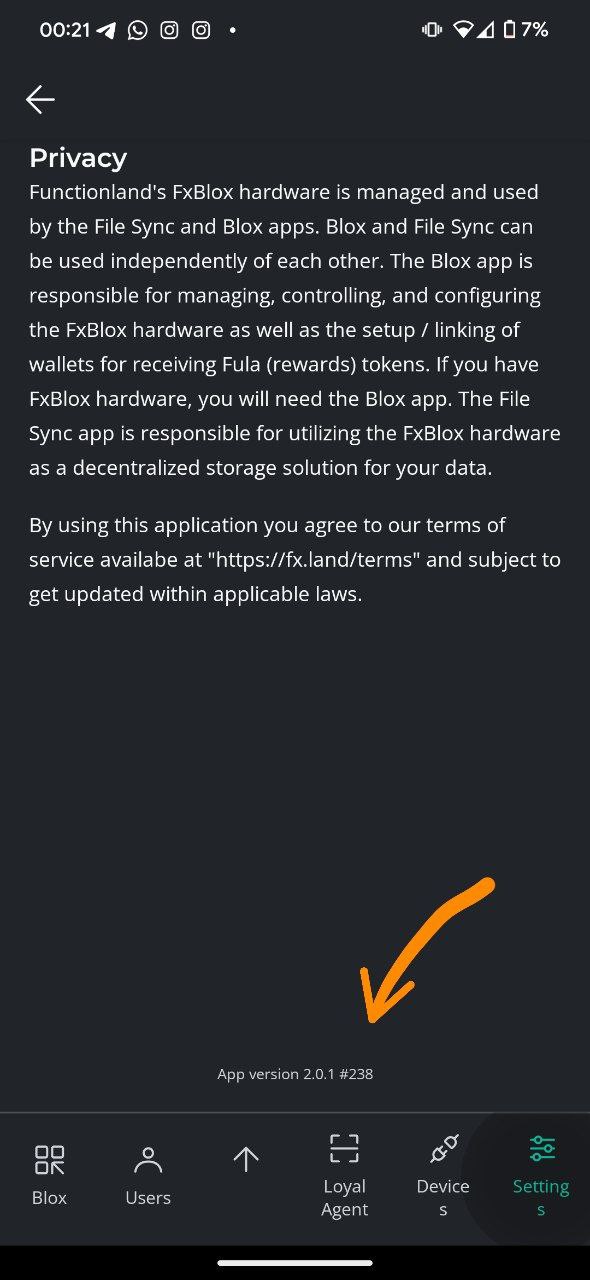
You can check the version at any time in Settings > About.
Still on the mobile app?
Make sure it is at least version 2.0.1 — update it from your app store. The Android and iOS apps are being discontinued, so please move to the web app when you can.
Step 2: Configure Chain Selection
Chain Selection
Default selection is Skale. If you have an authorization code, change to Base only if you have a specific reason to.
- Go to Settings > Chain Selection
- Ensure you are on the correct chain (Base/Skale)
- Click the "Add and Switch to Skale/Base" button
- This will open MetaMask
- In MetaMask, ensure you are on the same chain selected in the FxBlox app
Step 3: Restart
- Close MetaMask completely
- Reload the FxBlox tab (or, on the mobile app, close and re-open it)
Step 4: Switch to Mainnet
- On the home screen, you'll see a "Switch to Skale/Base" button
- Click on it - this opens MetaMask
- Wait a few seconds on MetaMask
- You'll see a "Go back to application" message
- Switch back to the FxBlox app
- Wait a few more seconds there — the page reconnects to your wallet before it can see the change, so it lags a little behind MetaMask. Tapping the button again or reloading in the meantime cancels what you just approved.
- The button should disappear
Success Indicator
When the "Switch to Skale/Base" button disappears from the home screen, the transition is successful!
Step 5: Join Global Pool
- Go to Settings > Pools
- Join the Global pool
Step 6: Verify Rewards
That's it! You should now see:
- Rewards displayed on the home page
- A Claim button below the rewards when rewards are available
Congratulations!
You have successfully transitioned to mainnet! Your rewards will now accumulate and you can claim them when available.
Troubleshooting
If you encounter issues:
- Ensure your Blox device is powered on and connected to internet
- Try unplugging and replugging your Blox device
- Wait 2 hours after setup for the Blox to fully update
- See the Support page.
Next Steps: Monitor your rewards on the home page and claim them when the claim button appears!